Atlas and Baking
The Atlas & Bake Zone panel turns your strands into texture maps. Work through its sections from top to bottom: frame the zone, pick the render settings, choose the maps, and bake.
Atlas Plane
Section titled “Atlas Plane”| Option | Layout |
|---|---|
| Flat (XY) (default) | Strands grow along +Y and the sheet faces up (+Z). The bake camera looks down from above. |
| Upright (XZ) | Strands grow along +Z and the sheet faces front (+Y). The bake camera looks from the front. |
Choose Upright if you prefer working in front view. Changing the plane rebuilds every bstrand.
Bake Zone
Section titled “Bake Zone”The bake zone is the rectangle that becomes your atlas. It is outlined in yellow in the viewport.
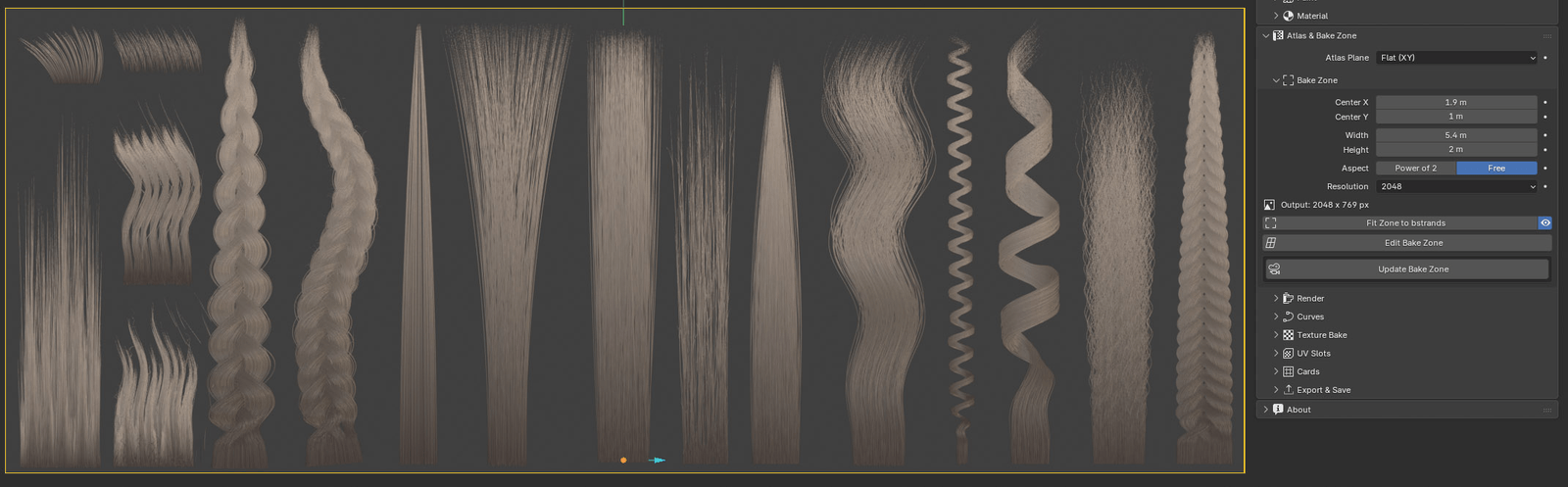
| Control | What it does |
|---|---|
| Center X / Y | Where the zone’s centre is. |
| Width / Height | The zone’s size in metres. |
| Aspect | The texture’s shape (see below). |
| Resolution | Pixels on the zone’s long side: 256, 512, 1024, 2048, 4096 or 8K. |
| Output | The size the maps will be written at, for example 4096 x 2048 px. |
| Fit Zone to bstrands | Wraps the zone around every visible bstrand, with a 2% margin (untick Add 2% Margin in the Adjust Last Operation panel for an exact fit). |
| Eye beside Fit Zone | Shows or hides the yellow outline. |
| Edit Bake Zone | Drag the zone directly in the viewport (see the hotkeys below). |
| Update Bake Zone | Creates or updates the bake camera, BStrands_AtlasCam, and looks through it. |
When you change Resolution, Aspect, Width or Height, the scene’s own Resolution X / Y (Properties ▸ Output) update to match.
Flip X and Flip Y
Section titled “Flip X and Flip Y”Flip X and Flip Y mirror every visible bstrand across the bake zone’s centre line, so the atlas bakes the other way round: Flip X reverses the row and mirrors each bstrand, Flip Y puts the roots at the other end of the zone. They move the bstrand objects only – no scatter or modifier setting is touched, the bake zone stays where it is, and Stick Out strays come along with their bstrand. Press the same button twice to get back exactly where you started.
Aspect: Power of 2 or Free
Section titled “Aspect: Power of 2 or Free”| Aspect | Texture size | What Fit Zone does |
|---|---|---|
| Power of 2 (default) | Standard game texture sizes such as 4096 × 4096, 4096 × 2048 or 4096 × 1024. | Snaps the zone to the nearest of 1:1, 2:1, 4:1…, growing it slightly. A row of strands at 1.98:1 becomes exactly 2:1. |
| Free | Follows the zone exactly: a 2.2 × 1.4 m zone at 4096 gives 4096 × 2607. | Hugs the strands. |
Edit Bake Zone hotkeys
Section titled “Edit Bake Zone hotkeys”| Key | Action |
|---|---|
| LMB drag | Drag a corner or edge to resize; drag inside to move |
| Shift + drag | Resize from a corner while keeping the aspect ratio |
| Space | Make the zone square (1:1) |
| F | Fit to the visible bstrands |
| Enter | Confirm |
| Esc or RMB | Cancel and put the zone back |
Render
Section titled “Render”| Control | What it does |
|---|---|
| Engine | The engine the maps are baked with: EEVEE or Cycles. |
| Device | Cycles only: bake with GPU + CPU, GPU or CPU. |
| Samples | Anti-aliasing samples per map. Below 4 there is no edge antialiasing; 16–32 is the useful range. |
| Preview Bake Look | Shows a map’s flat, unlit look on the strands in the viewport. Choose which map in the menu beside it. |
The bake always runs in a separate, unlit scene, so your lights, world and render settings are never touched.
Curves
Section titled “Curves”Blender’s own curve render settings, for the engine you bake with. The bake uses them too.
| Engine | Shape options | Recommendation |
|---|---|---|
| EEVEE | Strand (hairlines), Strip (flat ribbons), Cylinder (round tubes), plus Additional Subdivision | Cylinder |
| Cycles | Rounded Ribbons, 3D Curves, plus Subdivisions | 3D Curves |
Flat ribbons swap in hard steps where strands overlap, and those steps bake into the maps. Round tubes meet cleanly and bake no slower. Activate Curve-BStrands sets the recommended shape for you.
Texture Bake
Section titled “Texture Bake”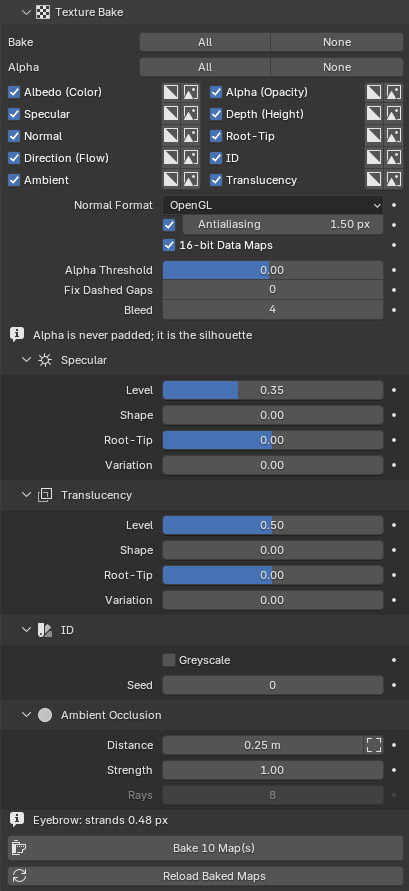
The maps
Section titled “The maps”Each map row has a checkbox (bake this map), an alpha toggle and a Show Map button that opens the baked file in an Image Editor. The All / None buttons at the top switch every map, or every alpha toggle, at once.
| Map | What it holds | Background without alpha |
|---|---|---|
| Albedo (Color) | The root-to-tip gradient multiplied by painted colour | Black |
| Alpha (Opacity) | Strand coverage: white hair on black | Black |
| Specular | Specular level, masked by the strands | Black |
| Depth (Height) | Position through the sheet: 0 at the back, 1 at the front | Black |
| Normal | Surface normal | Neutral normal (flat blue) |
| Root-Tip | 0 at the root, 1 at the tip | Black |
| Direction (Flow) | Which way each strand runs | Neutral flow |
| ID | A random flat colour per strand | Black |
| Ambient | Ambient occlusion, ray traced by the chosen engine | White |
| Translucency | Translucency level, masked by the strands | Black |
Maps bake opaque by default: strands over a solid background, which is what most pipelines expect. Turn on a map’s alpha toggle to write it with a transparent background and an alpha channel instead.
Output options
Section titled “Output options”| Control | What it does |
|---|---|
| Normal Format | OpenGL (+Y up) for Blender, Unity, Godot and Substance’s OpenGL export. DirectX (−Y up) for Unreal Engine, 3ds Max and Substance’s DirectX export. If hair looks lit from the wrong side in your engine, switch this. |
| Antialiasing | Smooths strand edges; the number beside it is the filter width in pixels. Turn it off for hard, aliased edges, for example on an ID map. |
| 16-bit Data Maps | Writes Depth, Normal, Direction and the other data maps at 16 bits, so they don’t band. Albedo stays 8-bit. Needs PNG, TIFF or OpenEXR. |
| Alpha Threshold | Above 0, drops faint coverage so thin strands don’t bake as grey haze. Below 0, makes faint strands read more solid without growing the silhouette. |
| Fix Dashed Gaps | Fills small gaps between lit pixels, so sub-pixel strands don’t bake as dotted lines. 1–2 is plenty. It never grows the silhouette. |
| Bleed | Pads the baked colour outward by this many pixels, so texture filtering never samples empty space at strand edges. The Alpha map is never padded. |
Specular and Translucency
Section titled “Specular and Translucency”| Control | What it does |
|---|---|
| Level | The base value of the map. |
| Shape | Shades each strand as a tube. Specular gets brightest along the centre of each strand; Translucency brightest at its edges. At 0 the map is flat. |
| Root-Tip | Fades the map along the strand. Positive dulls (Specular) or darkens (Translucency) the roots; negative the tips. |
| Variation | Gives each strand its own value. |
These settings also shade the strands in the viewport, so you can judge them before baking.
| Control | What it does |
|---|---|
| Greyscale | Writes one grey level per strand instead of a colour, for a mask that is read as a number rather than looked at. |
| Seed | Re-rolls which colour each strand gets. Leave it at 0 for the colours earlier versions wrote; raise it when two strands next to each other came out too alike to tell apart. |
Ambient Occlusion
Section titled “Ambient Occlusion”| Control | What it does |
|---|---|
| Distance | How far occlusion reaches. Fit AO Distance sets it from the bstrands: half their thickness, where the effect stops growing. |
| Strength | Deepens the occlusion. Hair occlusion is naturally subtle; raise this for more contrast. |
| Rays | Cycles only: rays per sample. Leave it low and raise Samples instead, which improves quality more for the same time. |
The line above the button shows the strand width, in atlas pixels, of the thinnest bstrand. Under about 1.5 px strands can’t fill a pixel and bake as dotted lines: raise Thickness or Resolution.
- Save your .blend file, so the default output folder next to it exists.
- Click Bake N Map(s). A progress bar in the viewport shows each map; Esc cancels.
- Click Show Map beside a map to inspect it.
Maps are written to the output folder set in Export & Save, named <Name Prefix>_<map>.<format>, for example BStrands_normal.png.
If you bake again while cards or the preview card are showing the atlas, click Reload Baked Maps so Blender picks up the new files.