Installation and Setup
Install the add-on
Section titled “Install the add-on”- Download
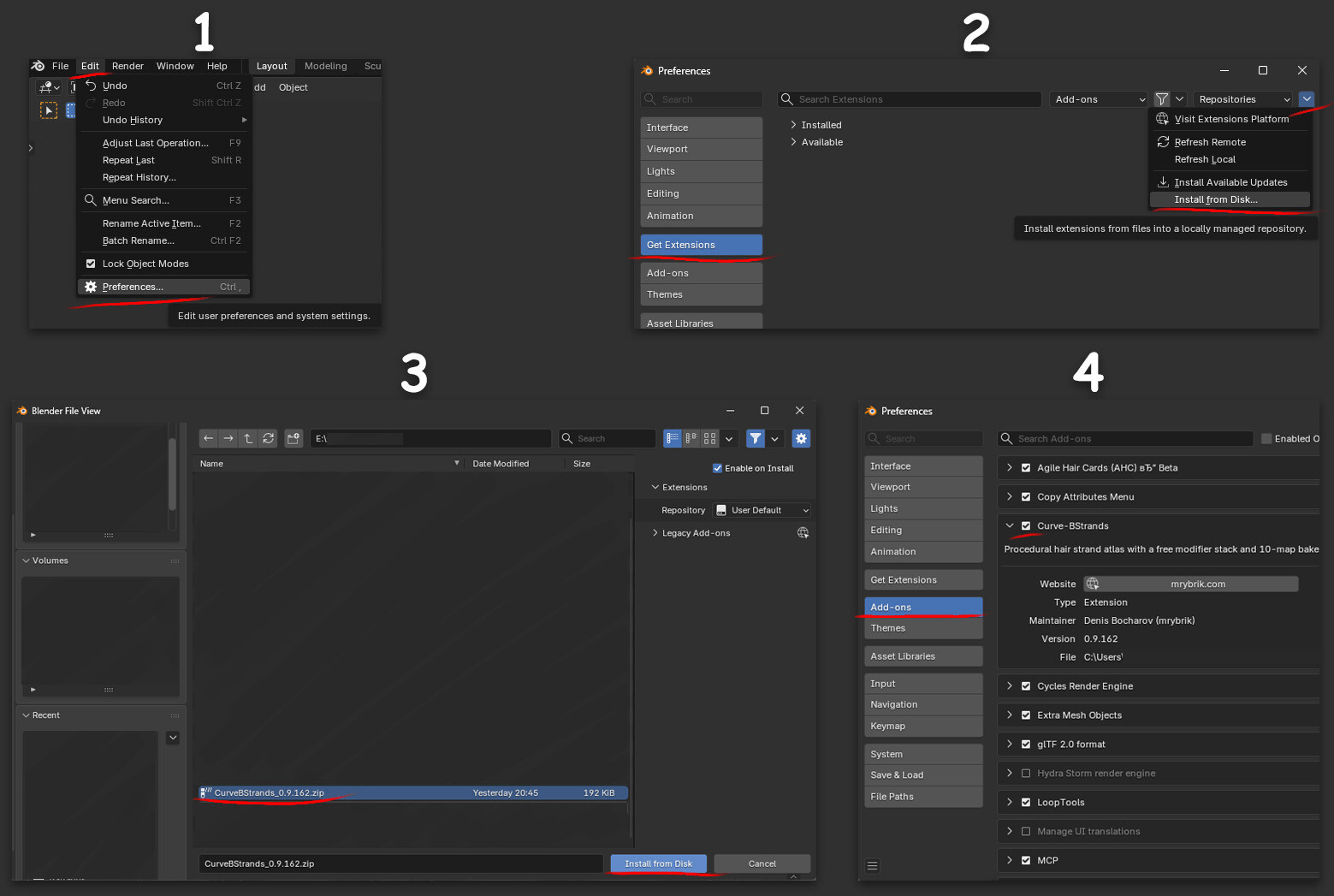
CurveBStrands_0.9.163.zip. Do not unzip it. - In Blender, open Edit ▸ Preferences ▸ Get Extensions.
- Click the drop-down arrow in the top-right corner and choose Install from Disk…
- Select the zip file and click Install from Disk.
- Check that Curve-BStrands is enabled in the add-on list.
You can also drag the zip file straight into the Blender window.
Find the add-on
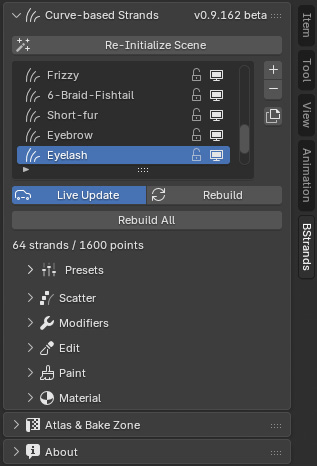
Section titled “Find the add-on”Open a 3D Viewport, press N to show the sidebar, and click the BStrands tab.
The tab has three top-level panels:
| Panel | What it holds |
|---|---|
| Curve-based Strands | The list of bstrands, Live Update, Presets, and the sections Scatter, Modifiers, Edit, Paint and Material |
| Atlas & Bake Zone | Bake Zone, Render, Curves, Texture Bake, UV Slots, Cards, and Export & Save |
| About | Version, install folder, and links |
Every section can be collapsed. Click its header to open or close it.
Set up the scene
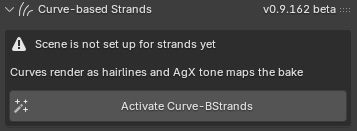
Section titled “Set up the scene”Before you start, press Activate Curve-BStrands at the top of the Curve-based Strands panel.
Blender’s defaults are wrong for strand work in two ways. Curves render as one-pixel hairlines instead of strands with thickness, and the AgX view transform tone-maps everything, including your baked maps. Activate fixes both and prepares the scene.
It does the following. Each item is a checkbox in the Adjust Last Operation panel (bottom-left of the viewport) if you only want some of them:
| Option | What it sets |
|---|---|
| Curves with Thickness | Curves render as round tubes (Cylinder) in EEVEE and as 3D Curves in Cycles |
| Standard Colour Management | View transform Standard, so baked colours are written as they are |
| Render Engine | The engine the atlas bakes with |
| Material Preview Shading | Viewport shading that shows the strand material |
| Neutral World | A plain dark world, only if the scene has none |
| BStrands Collection | A collection that everything the add-on creates goes into |
| Starter bstrand | One bstrand to start with, only if the scene has none |
| Start Bake Zone | Puts the bake zone back to its starting 2 × 2 m square |
| Bake Zone Camera | The orthographic camera that frames the bake zone |
After that the button reads Re-Initialize Scene. If the scene later drifts out of this state, a warning box appears at the top of the panel with the button to fix it.
Update to a new version
Section titled “Update to a new version”Install the new zip the same way. Then restart Blender, or disable and re-enable the add-on, so every part of the new version loads.
Your saved presets are kept: they live in Blender’s configuration folder, not in the add-on folder.
Uninstall
Section titled “Uninstall”Open Edit ▸ Preferences ▸ Add-ons, expand Curve-BStrands and click Uninstall.
Your presets stay in Blender’s configuration folder, so they come back if you install the add-on again. On Windows that folder is %APPDATA%\Blender Foundation\Blender\<version>\config\bstrands\presets.