Strands, Presets and Scatter
The bstrand list
Section titled “The bstrand list”The Curve-based Strands panel lists every bstrand in the scene. Click a row to make that bstrand active; the sections below always show the active one.
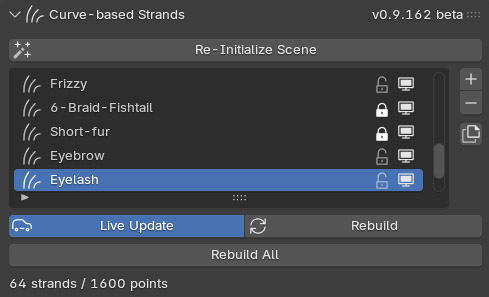
| Control | What it does |
|---|---|
| + | Creates a new bstrand in the middle of the bake zone. It starts with no modifiers. |
| − | Deletes the active bstrand and its falloff curves. |
| Duplicate | Copies the active bstrand with all its settings and curves. |
| Padlock (on each row) | Locks the bstrand. While locked, changing settings no longer rebuilds it, which protects hand-sculpted strands. A padlock is also drawn in the viewport. |
| Eye (on each row) | Hides the bstrand in the viewport. Hidden bstrands are left out of Fit Zone. |
| Live Update | Rebuilds as soon as you change a setting or a curve. |
| Rebuild / Rebuild All | Regenerates the active bstrand, or every bstrand, from its settings. |
The line under the buttons shows how many strands and points the active bstrand has.
Presets
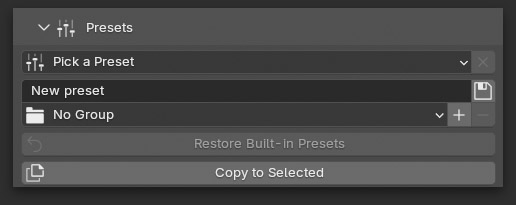
Section titled “Presets”A preset stores a bstrand’s whole look: Scatter, the complete modifier stack, every falloff curve, the shape of every guide curve, and the material’s look. Presets work in any .blend file.
Apply a preset
Section titled “Apply a preset”- Select one or more bstrands.
- Open Presets and click Pick a Preset.
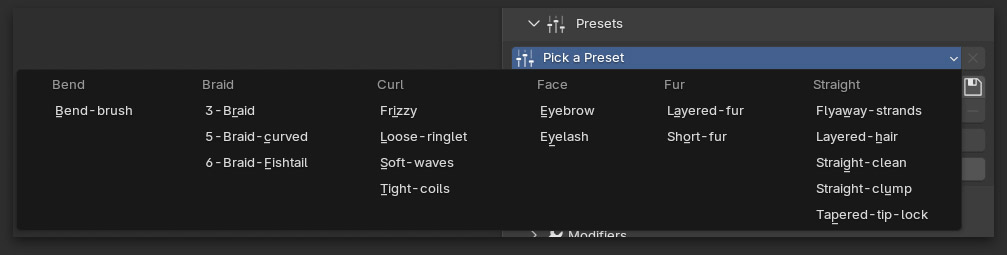
- Choose a preset. It applies to every selected bstrand straight away.
Press Ctrl+Z to undo.
Save your own preset
Section titled “Save your own preset”- Type a name in the Name field. Spaces become hyphens.
- Choose a group from the menu under it (No Group by default), or click + to create one.
- Click the save button beside the name.
Saving under the same group and name as a built-in preset replaces it on the list; delete yours to get the built-in back.
Manage presets
Section titled “Manage presets”| Control | What it does |
|---|---|
| X beside the preset menu | Deletes the preset shown. A built-in preset is only taken off the list. |
| Restore Built-in Presets | Brings back every built-in preset you deleted. Your own presets are not touched. |
| + / − beside the group | Creates a group, or removes the selected one. Removing a group keeps its presets and moves them to No Group. Built-in groups cannot be removed. |
| Copy to Selected | Copies the active bstrand’s settings onto every other selected bstrand, without saving a preset. |
Your presets are plain JSON files in Blender’s configuration folder, under bstrands/presets, with one subfolder per group. Copy that folder to move your presets to another computer.
Built-in presets
Section titled “Built-in presets”| Group | Presets |
|---|---|
| Straight | Straight-clean, Straight-clump, Tapered-tip-lock, Flyaway-strands, Layered-hair |
| Curl | Soft-waves, Tight-coils, Loose-ringlet, Frizzy |
| Braid | 3-Braid, 5-Braid-curved, 6-Braid-Fishtail |
| Bend | Bend-brush |
| Fur | Short-fur, Layered-fur |
| Face | Eyebrow, Eyelash |
Scatter
Section titled “Scatter”Scatter is the base of every bstrand: where the roots are, how many strands grow, how long and thick they are. The modifiers then shape what Scatter gives them.
A bstrand is a rectangular block of roots. Width runs across the bstrand, Length along the strands, and Depth through the thickness of the sheet.
Viewport handles
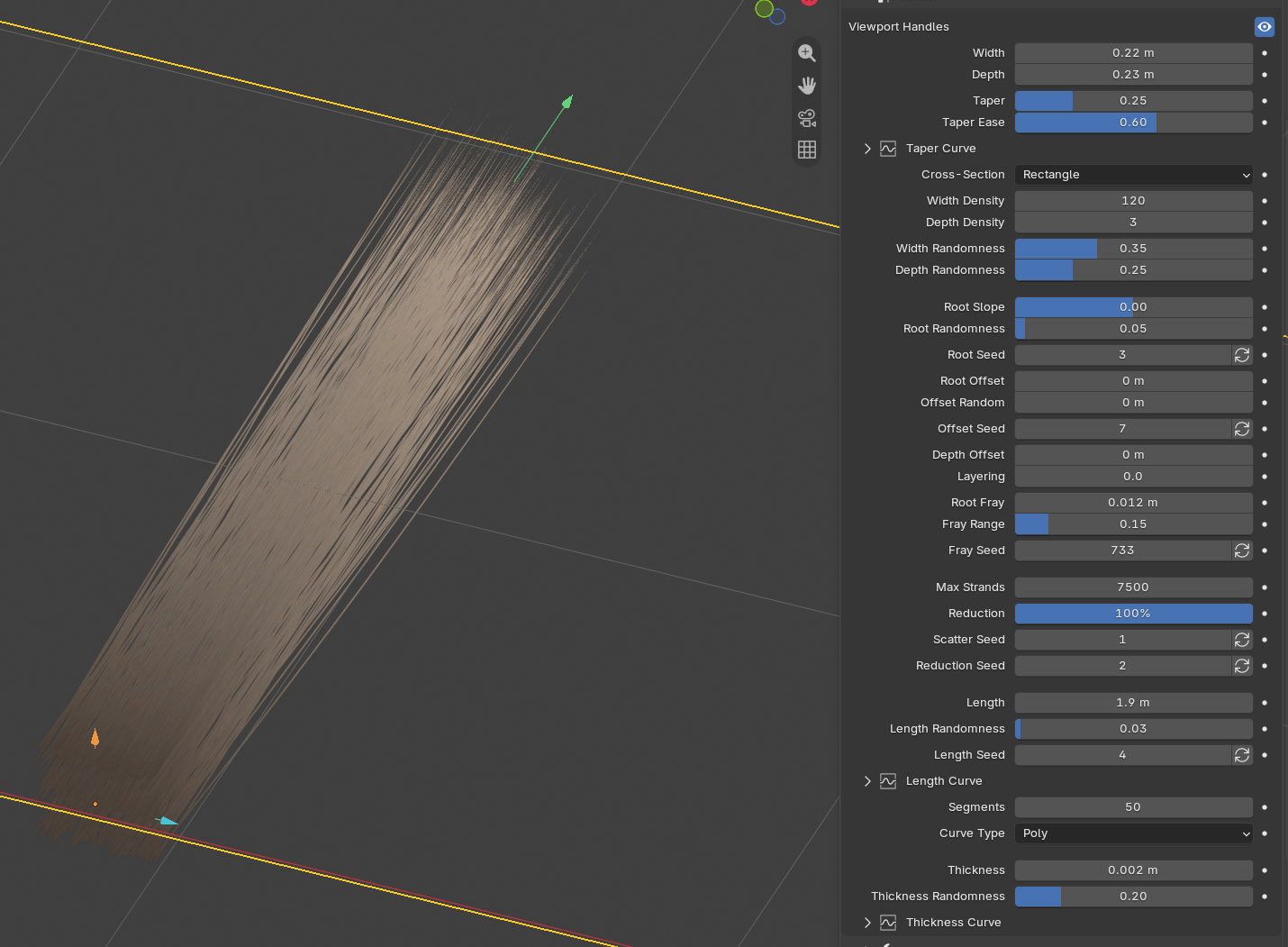
Section titled “Viewport handles”Size Gizmos shows arrows on the active bstrand. Drag the cyan arrow to change Width, the green one for Length and the amber one for Depth.
Size and shape
Section titled “Size and shape”| Control | What it does |
|---|---|
| Width | How wide the bstrand is. |
| Depth | How thick the sheet of roots is, across the atlas plane. |
| Taper / Taper Ease | Narrows the whole bstrand toward its tip, like a tuft of hair. Taper Ease moves the narrowing toward the root (below 0.5) or the tip (above 0.5). Taper Curve shapes it by hand. |
| Cross-Section | The bstrand seen end-on: Rectangle (a flat sheet), Ellipse (a rounded rope), or Curve (drawn by hand). |
Root distribution
Section titled “Root distribution”| Control | What it does |
|---|---|
| Width Density / Depth Density | How many strands across the width and through the depth. |
| Width Randomness / Depth Randomness | Jitters the root grid. |
| Root Slope | Fans the strands outward across the width. |
| Root Randomness | Tilts each strand a little. |
| Root Offset | Slides every root along the growth direction. Negative sinks them below the base line. |
| Offset Random | Scatters the roots that far either side of Root Offset, so the base is not one flat line. |
| Depth Offset | Moves the whole sheet front to back. |
| Root Fray / Fray Range | Ruffles just the root ends and fades out along the strand, leaving the tips where they are. |
| Layering | Spreads the strands through the sheet by this many strand widths. Reduces the hard steps where overlapping strands meet (see Troubleshooting). |
Strand count
Section titled “Strand count”| Control | What it does |
|---|---|
| Max Strands | A hard cap on the number of strands. |
| Reduction | Keeps only this percentage of the strands, chosen at random. At least one is always kept. |
Length and thickness
Section titled “Length and thickness”| Control | What it does |
|---|---|
| Length / Length Randomness | Strand length, and how much it varies. Length Curve shapes the length across the bstrand, from its left edge to its right, for pointed or rounded hems. |
| Segments | Points per strand. Raise it for tight curls and braids; lower it for speed. |
| Curve Type | Poly is the exact generated shape; Catmull-Rom, Bezier and NURBS smooth it. |
| Thickness / Thickness Randomness | Strand diameter, and how much it varies. Thickness Curve shapes it from root to tip. |
Every random control has a Seed. Click the button beside it to roll a new one. The same seed always gives the same result.
Falloff curves
Section titled “Falloff curves”The collapsible Curve sections open a curve widget. The left of the graph is the root (or the left edge of the bstrand), the right is the tip (or the right edge). Reset puts the curve back to its default shape. Changes update the strands live as you drag.