UV Slots, Cards and Export
Once the atlas is baked, each bstrand’s patch of it becomes a hair card. UV Slots decide where those patches are, Cards builds the meshes, and Export & Save writes everything out.
UV Slots
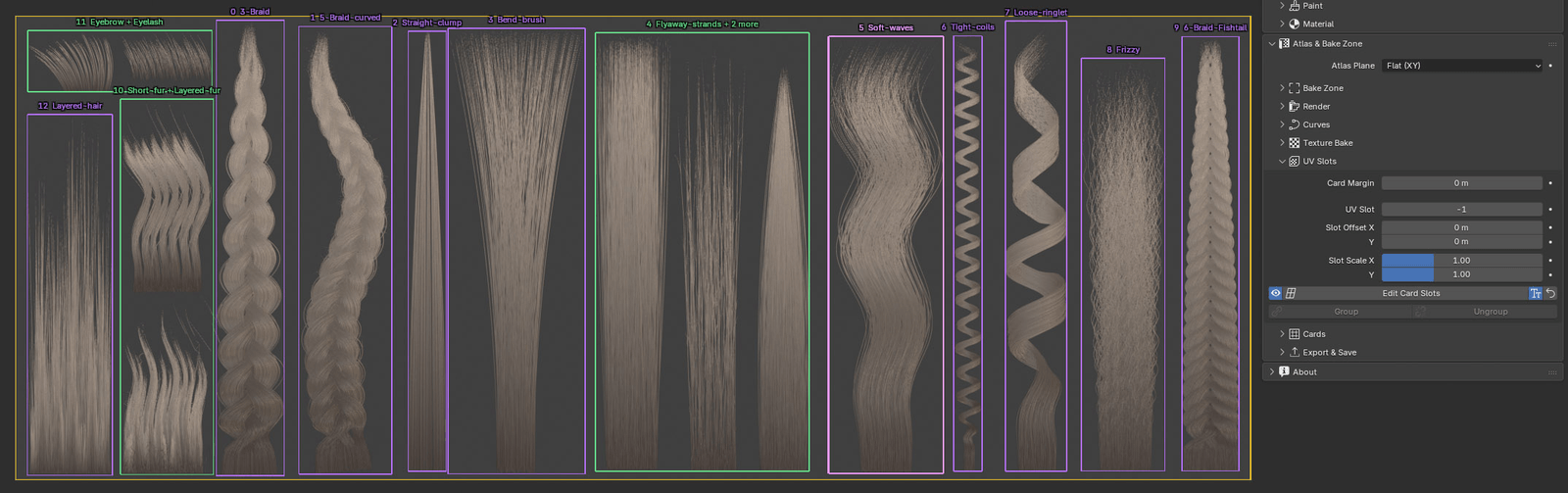
Section titled “UV Slots”A UV slot is the rectangle of the atlas one bstrand occupies. By default it fits the bstrand automatically: its outline as seen by the bake camera, plus the strand thickness and the Card Margin. Slots are drawn as violet boxes in the viewport.
| Control | What it does |
|---|---|
| Card Margin | Extra room around every slot and card. Raise it if you will bend the cards later and strands would reach the edge. |
| UV Slot | The active bstrand’s position in the exported layout. −1 is automatic, which follows the order of bstrands in the scene. |
| Slot Offset X / Y | Slides the slot, and its card, across the atlas. |
| Slot Scale X / Y | Grows or shrinks the slot about its centre, taking in more or less of the atlas around the strands. |
| Eye | Shows or hides the slot boxes. |
| Edit Card Slots | Drag slots directly in the viewport (see the hotkeys below). |
| Slot Names | Labels each slot with its bstrand’s name. |
| Reset (arrow) | Puts the active slot back on its automatic fit. |
| Group / Ungroup | Gives the selected bstrands one shared slot, or separate slots again. |
Group bstrands into one slot
Section titled “Group bstrands into one slot”Select two or more bstrands and click Group. They now share one slot around all of their hair: one green frame, one card and one entry in the exported layout. Slot number, offset and scale are shared by the group. Select any member and click Ungroup to give it its own slot again.
Use groups for elements that belong on one card, such as a bstrand and the flyaway hairs you built beside it.
Edit Card Slots hotkeys
Section titled “Edit Card Slots hotkeys”| Key | Action |
|---|---|
| LMB drag | Drag a corner to scale; drag inside to move |
| Shift + drag | Scale from a corner while keeping the aspect ratio |
| R | Reset this slot to its automatic fit |
| Tab | Step to the next bstrand |
| Enter | Confirm |
| Esc or RMB | Cancel |
| Control | What it does |
|---|---|
| Quad X / Quad Y | The size of one quad of the card mesh, in metres. Every card gets as many loops as fit, so all cards share the same density. The line below shows the active bstrand’s card size and loop count. |
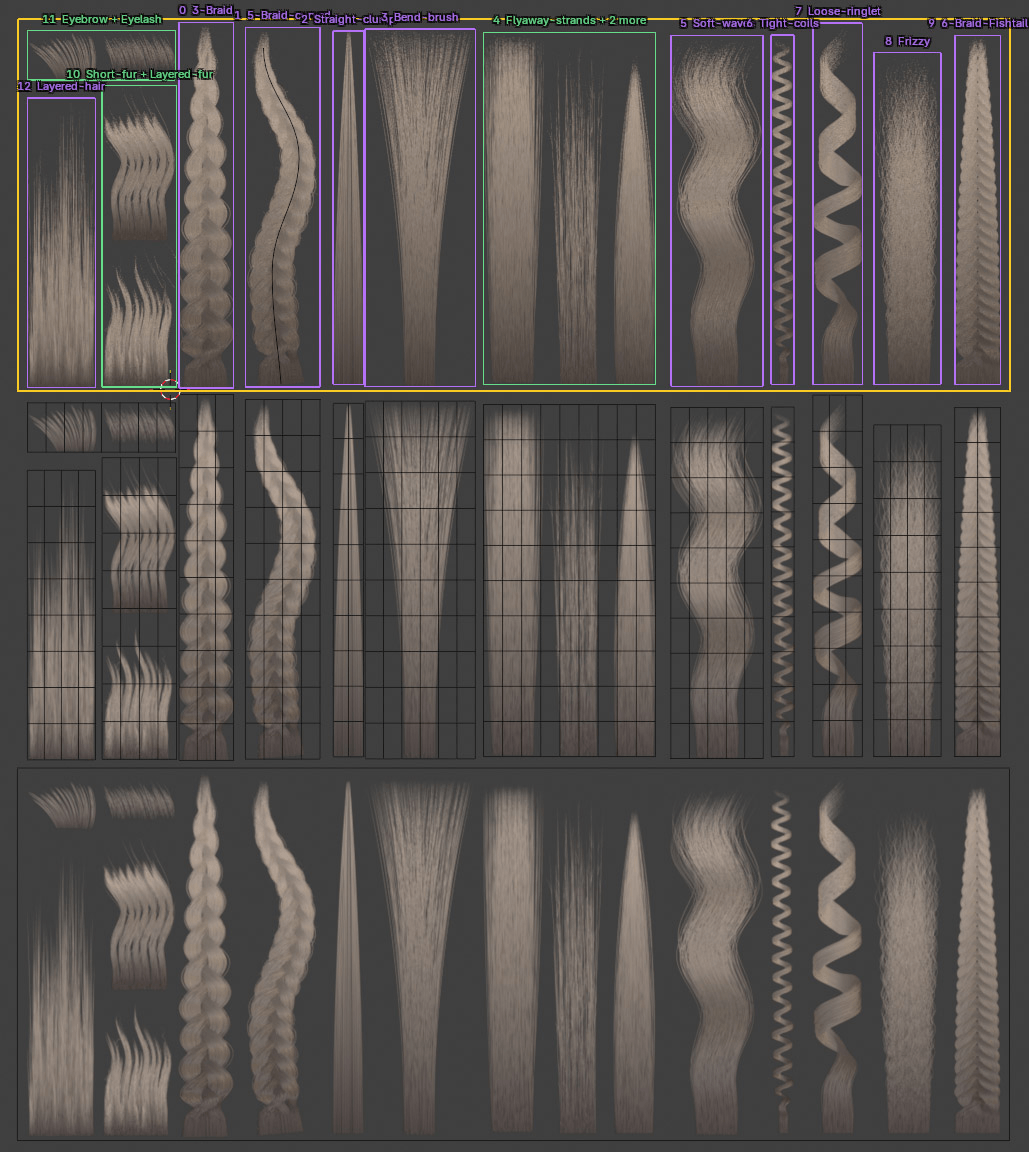
| Create UV-Ready Cards | Builds one card per slot. Each card is the size of its slot seen from above, lies flat on the atlas plane, and is UV-mapped to its patch of the atlas. |
| Preview Card | Builds one card next to the bake zone wearing the maps you just baked, to check they work together. |
If the maps are already baked, the cards wear them straight away: Albedo darkened by Ambient, Alpha as the cut-out, Normal and Depth for relief, plus Specular and Translucency. If nothing is baked yet the cards are built bare. Bake, then create them again.
Export & Save
Section titled “Export & Save”Baked maps
Section titled “Baked maps”| Control | What it does |
|---|---|
| Output Folder | Where maps are written. The default // means the folder the .blend is saved in. If the file isn’t saved yet, the panel shows where the maps will go instead. |
| Name Prefix | The start of every file name (default BStrands), for example BStrands_albedo.png. |
| Create Subfolder | Writes the maps into a subfolder named after the prefix. |
| Format | PNG, TGA, OpenEXR, JPEG, TIFF or WebP. |
| Open Output Folder | Opens the folder in your file browser. |
Meshes and files
Section titled “Meshes and files”| Control | What it does |
|---|---|
| Sides | Cross-section of Convert to Mesh: 2 is a flat ribbon facing the bake camera; 3 or more builds round tubes. |
| Convert to Mesh | Turns the active bstrand into a UV-mapped mesh, including sculpt edits and painted colour. The bstrand is hidden (untick Hide Source bstrand to keep it visible). Use it for Vertex Paint or to export strand geometry. |
| Export Selected Meshes | Writes the selected meshes to the output folder as FBX, OBJ or glTF 2.0. |
| Export UV Layout (AHC) | Writes each slot’s place in the atlas as a JSON file for Agile Hair Cards. |
| Save Project | Saves the .blend with every bstrand, modifier and curve. |
Using the atlas with Agile Hair Cards
Section titled “Using the atlas with Agile Hair Cards”Agile Hair Cards (AHC) is the companion add-on that cuts hair cards and places them on a character. Curve-BStrands writes the layout file AHC already reads.
- Bake the maps.
- Click Export UV Layout (AHC) and save the JSON file. By default it is named
<Name Prefix>_uv_layout.jsonand goes in the output folder. - In Agile Hair Cards, select your guide mesh and use Import UV Layout with that file.
Each UV slot becomes one AHC atlas slot, in slot order. The file also lists each bstrand’s name, strand count and pixel rectangle, as a record of the bake.